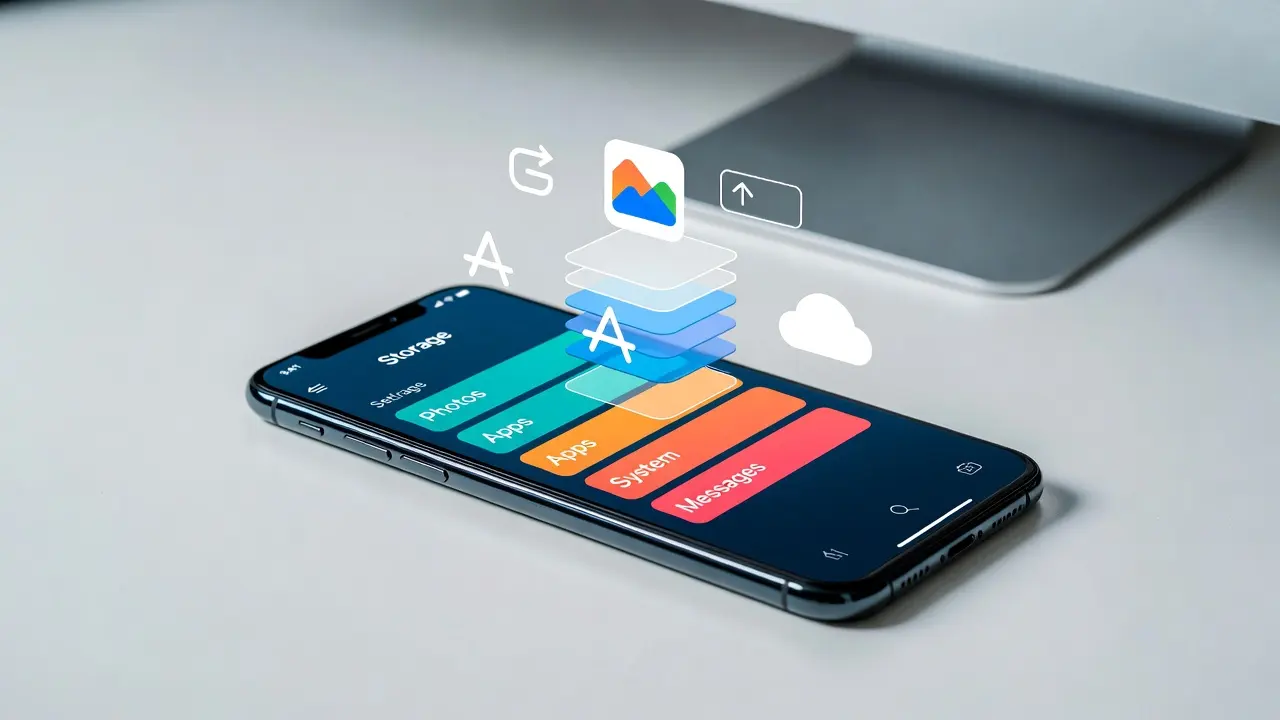
You open iPhone Storage expecting to see photos or apps eating your space, and instead you find a gray bar labeled System Data taking up 30 GB or more. You did not put anything there, and there is no delete button. It is one of the most confusing parts of iPhone storage, and it is also one of the most common reasons people see the "Storage Almost Full" warning.
The good news is that you can clear system data on iPhone without any special tools, and the same steps help when your iPhone storage is full for other reasons too. You cannot wipe it out with a single tap, but you can shrink it a lot by clearing the things that feed it. This guide explains what System Data actually is, why it grows so large, and eight methods that bring it back down, starting with the quickest ones.
What Is System Data on iPhone?
System Data is the storage your iPhone uses for temporary and background files that do not belong to a single app. In older versions of iOS, Apple called it "Other." It usually includes:
- Caches from Safari, streaming apps, and social media apps
- Logs and diagnostic files that iOS creates in the background
- Temporary files from updates, downloads, and app installs
- Siri voices, fonts, dictionaries, and other system resources
- Message attachments and streamed media that have not been cleaned up yet
iOS is supposed to manage these files on its own and remove them when space runs low. In practice, that cleanup does not always happen, so the category keeps growing.
System Data vs iOS in iPhone Storage
You will also see a separate bar labeled iOS. That is the operating system itself, and its size depends on your iOS version. You cannot reduce it. System Data is the part you can actually work on, which is why it is worth learning how to reduce system data on iPhone instead of worrying about the iOS number.
Why Is My System Data So High?
A few habits make System Data balloon faster than normal:
- Streaming a lot of music or video, which leaves cached media behind
- Heavy use of apps like TikTok, Instagram, WhatsApp, or YouTube
- Keeping years of messages with photos and videos
- Going a long time without restarting your iPhone
- A failed or interrupted iOS update that leaves temporary files behind
As a rough guide, System Data between about 5 GB and 15 GB is common. If yours sits well above 20 GB, that is usually a sign it is time to clean it up.
How to Check System Data on iPhone
Before you try to clear system data on iPhone, note your current number so you can see which method actually works.
- Open Settings and tap General.
- Tap iPhone Storage and wait for the bar at the top to load.
- Scroll to the bottom of the list and tap System Data to see its size.
Check this screen again after each method below. If you searched for how to clear system storage on iPhone, this is the same category, just under its official name.
How to Clear System Data on iPhone
These methods are listed from the easiest to the most drastic. Most people get the results they need from the first four or five.
1. Restart Your iPhone
A simple restart forces iOS to throw away many temporary files and caches. It sounds too easy, but it is often the fastest way to clear system data on iPhone by a few gigabytes.
Press and hold the side button and either volume button until the slider appears, drag it to power off, wait 30 seconds, then turn the phone back on. Leave it for a few minutes before you check storage again, since iOS needs time to recalculate.
2. Clear Safari History and Website Data
Safari stores cached pages, images, and cookies that count toward System Data, so clearing them is one of the easiest ways to clear system data on iPhone.
- Open Settings and tap Apps, then Safari. On iOS 17 and older, Safari is listed directly in Settings.
- Tap Clear History and Website Data.
- Choose All History and confirm.
This signs you out of some websites, so keep your passwords handy.
3. Clear Cache in Social Media and Streaming Apps
Apps like TikTok, Instagram, Spotify, and Netflix keep large caches. Some of this shows up under the app, and some ends up in System Data.
Many apps have a built in option. In TikTok, for example, go to Profile, tap the menu, open Settings and privacy, tap Free up space, and then Clear next to Cache. Spotify has a similar Clear cache option in its storage settings. If an app has no such option, the next method works better.
4. Offload or Reinstall Heavy Apps
Offloading removes an app but keeps your documents and data. Reinstalling it gives you a fresh copy without the old cache, which makes this a strong option when you want to clear system data on iPhone left behind by heavy apps.
- Go to Settings, General, iPhone Storage.
- Tap a large app.
- Tap Offload App, then tap Reinstall App.
For apps where you do not need local data, Delete App and a fresh download from the App Store clears even more. Make sure chats in apps like WhatsApp are backed up first.
5. Limit How Long Messages Are Kept
Old messages and their attachments are a quiet storage hog.
- Open Settings, tap Apps, then Messages.
- Scroll to Message History and tap Keep Messages.
- Choose 30 Days or 1 Year instead of Forever.
iOS will delete older messages and attachments, which helps clear system data on iPhone indirectly over the next few hours.
6. Update to the Latest iOS
Updating is an easy way to clear system data on iPhone when a bug is to blame. Apple regularly fixes storage bugs, including ones that cause System Data to grow out of control. Go to Settings, General, Software Update and install anything available. Keep enough free space for the update to download, and restart once it finishes.
7. Review Large Message Attachments
Even with a shorter message history, big videos and photos in chats can pile up fast.
- Go to Settings, General, iPhone Storage, and tap Messages.
- Tap Review Large Attachments.
- Tap Edit, select the files you no longer need, and tap the trash icon.
This is a quick way to get rid of system data on iPhone that comes from old media stuck in conversations.
8. Back Up and Reset Your iPhone
If System Data is still huge after everything else, a full reset is the one method that clears it almost completely. It is also the most time consuming, so treat it as a last resort.
- Back up your iPhone to iCloud or to your computer with Finder or iTunes.
- Go to Settings, General, Transfer or Reset iPhone.
- Tap Erase All Content and Settings and follow the prompts.
- During setup, restore from the backup you just made.
If you need to clear system data on iPhone completely, this is the closest you will get. After a restore, System Data usually starts from a much smaller number because the old caches and logs are not carried over.
One quick warning: you may see tips telling you to change your iPhone's date to trick it into deleting files. This does not reliably work and can cause problems with iCloud and app sign ins, so skip it.
How to Keep System Data From Growing Again
Once you clear system data on iPhone, a few habits keep it under control:
- Restart your iPhone at least once a week
- Keep at least 5 GB to 10 GB of free space so iOS can manage caches properly
- Clear Safari and app caches every month or two
- Keep Messages set to 30 days or 1 year
- Turn on Offload Unused Apps in the App Store settings
If you are running short on space overall, our guide on how to get more storage on iPhone covers iCloud, photo optimization, and other ways to free up room beyond System Data.
Frequently Asked Questions
Can I delete System Data on iPhone completely?
No. Some System Data is always needed for your iPhone to work, so it will never reach zero. You can reduce it a lot, but a few gigabytes will always remain.
How much System Data is normal on iPhone?
It varies by model, iOS version, and usage, but somewhere between about 5 GB and 15 GB is typical. Numbers well above 20 GB suggest caches and temporary files have built up.
Why does System Data go up again after I clear it?
Every app you use creates new caches and logs. Some growth is normal. If it climbs back fast, check heavy streaming or social media apps first.
Will clearing System Data delete my photos or messages?
Restarting, clearing Safari, and offloading apps do not touch your photos. Changing the Keep Messages setting does delete older messages, and a full reset erases everything until you restore from a backup, so back up first.
Is there an app that can clear system data on iPhone?
Apple does not allow third party apps to access System Data, so no cleaner app from the App Store can remove it directly. Be careful with apps that promise to, since most only clear their own cache or show ads.
Final Thoughts
System Data looks scary because you cannot tap it and delete it, but it is mostly leftover caches and temporary files. To clear system data on iPhone, start with a restart, then clear Safari and app caches, reinstall heavy apps, and limit how long messages are kept. Updating iOS fixes storage bugs, and a backup and reset is there if nothing else works. With a few regular habits, you can keep System Data under control and stop that storage warning from coming back.