
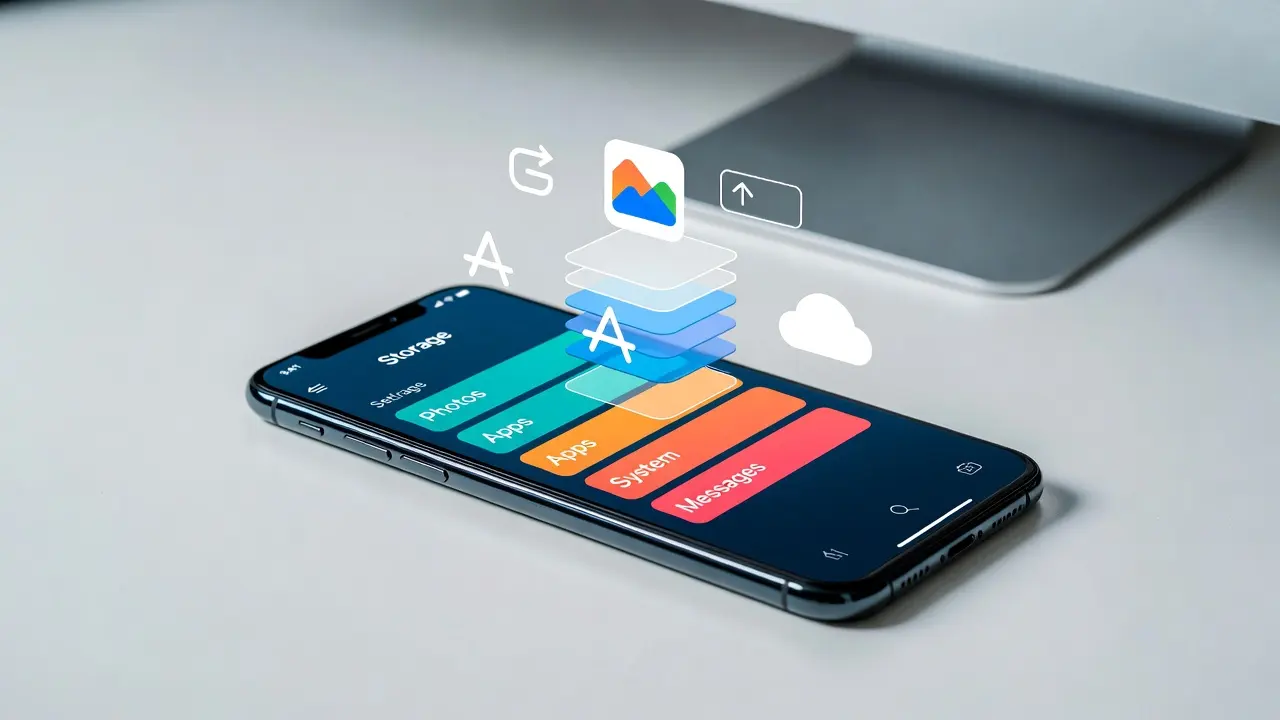
If your iPhone just hit you with the "Storage Almost Full" warning, you are not alone, and the fix does not have to mean buying a new phone. This guide covers exactly how to get more storage on iPhone, starting with the free built-in tools Apple already gives you, then moving on to iCloud, external drives, and what to do when cleanup genuinely is not enough anymore.
Quick Answer: How to Get More Storage on iPhone
Before the full breakdown, here is the short version. Check Settings, General, iPhone Storage to see what is eating your space, offload apps you rarely use, clear out large Messages attachments and Safari data, turn on Optimize Photo Storage under iCloud settings, and move old videos to an external drive or the cloud if you still need to free up more room after that. The sections below walk through each step in detail.
iPhone Storage vs. iCloud Storage: Know the Difference First
Before you touch a single setting, it helps to clear up the most common point of confusion. Your iPhone's storage is the physical memory built into the device, the space that holds your apps, photos, and system files. iCloud storage is separate online space used for backups, syncing, and storing files remotely. Paying for more iCloud storage does not add a single gigabyte to your phone itself. If your device storage is full, iCloud features like Optimize Storage can help by keeping smaller versions of photos on your phone, but the subscription itself is not a direct fix for local storage.
Can You Add More Storage to an iPhone?
No. Unlike some Android devices, an iPhone's storage chip is soldered to the logic board and fixed at the time of manufacture. There is no memory card slot, and no way to physically expand or upgrade the internal storage after purchase, no matter which model you own. If you bought a 128GB iPhone, it stays a 128GB iPhone for life. That means your real options are freeing up existing space, offloading files elsewhere, or eventually moving to a higher capacity phone. The rest of this guide walks through each of those paths.
How to Check What Is Using Your Storage
Before cleaning anything, see what is actually taking up room. Go to Settings > General > iPhone Storage. This screen shows a breakdown by category, usually Photos, Apps, System Data, and Messages, along with personalized recommendations near the top. Start there instead of guessing, since the biggest space hog is different for every user.
Free Ways to Free Up Space on iPhone
These cost nothing and take just a few minutes:
- Offload unused apps. In iPhone Storage, tap an app you rarely use and choose Offload App. This removes the app itself but keeps your documents and data, so reinstalling later brings everything back.
- Clear Safari and app caches. Go to Settings, Apps, Safari, then clear history and website data. For apps with no built-in cache clearing option, deleting and reinstalling often frees several gigabytes.
- Review large message attachments. Inside iPhone Storage, tap Messages and use Review Large Attachments to spot and delete oversized videos, photos, and voice notes sitting in old chats.
- Trim your Photos library. Empty the Recently Deleted album, since deleted photos still count against your storage until it is cleared. Turning on HEIF for new photos, under Settings, Camera, Formats, also roughly halves file size compared to JPEG at the same quality.
- Shorten Messages retention. Under Settings, Apps, Messages, set Keep Messages to 30 days or a year instead of Forever, so old attachments clear automatically going forward.
- Limit offline downloads. Downloaded playlists, podcasts, and shows in apps like Spotify, Netflix, or Apple Music can quietly eat tens of gigabytes. Switch back to streaming when you do not need offline access.
How to Increase iPhone Storage Using iCloud
If manual cleanup is not cutting it, iCloud's Optimize iPhone Storage setting is worth turning on. Go to Settings, tap your name, then iCloud, then Photos, and select Optimize iPhone Storage. Full resolution originals move to iCloud while lighter versions stay on your device, and they download automatically if you ever need the original. This is not the same as buying extra internal storage, but it can meaningfully shrink how much space your photo library takes up locally. If you decide you want more cloud backup room too, iCloud+ plans start small and scale up, though that is a separate purchase from your device's own storage.
External Storage Options
For anyone who prefers to keep files off the cloud entirely, USB-C or Lightning flash drives made for iPhone let you copy photos and videos directly onto a physical drive, then delete them from the phone to reclaim space. This works well for archiving old media but will not help with app installs, iOS updates, or system data buildup, since those need free space on the device itself. We cover the best drives and how to use them for full iPhone backups in more detail in a separate guide.
When Cleanup Is Not Enough: Consider a Storage Upgrade
If you are constantly back at the red line within days of a cleanup, especially on a 64GB or 128GB iPhone, the honest answer is that regular clearing out will only buy you so much breathing room. At that point, moving to a model with more built-in storage the next time you upgrade is usually the more permanent fix, rather than repeating this process every few weeks.
Final Thoughts
Getting more usable space on an iPhone almost always comes down to a mix of the same few things: knowing what is actually taking up room, clearing out what you do not need, leaning on iCloud's optimization tools, and accepting that a higher capacity phone is the only real long term fix if you are constantly maxed out. Start with the free steps above before spending anything, and revisit them every few months to keep your storage from creeping back up.